A default Openclaw installation wastes tokens on a staggering scale. Context accumulates across conversation rounds, growing from 5K tokens on the first exchange to 150K by the tenth, and every token gets resent with each API call. This single issue can push response times past 20 seconds and monthly API bills past $300 for a single agent.
This guide walks through the optimizations that produce the biggest speed gains, ranked by effort versus impact. The sequence below reflects what works in practice rather than in theory, across setups ranging from solo developer instances on $5 VPS boxes to multi-agent production environments.
The Optimization Priority Matrix
Not all optimizations are equal. This matrix ranks each technique by the speed improvement it delivers relative to the effort required. Start at the top and work down.
| Priority | Optimization | Speed Gain | Effort | Section |
|---|---|---|---|---|
| 1 | Model selection and tiering | 50-80% faster | 10 min | Model Selection |
| 2 | Context window management | 40-60% faster | 15 min | Context Management |
| 3 | Session hygiene | 30-50% faster | 5 min | Session Management |
| 4 | Prompt compression | 20-40% faster | 30 min | Prompt Compression |
| 5 | Caching strategies | 20-30% faster | 15 min | Caching Strategies |
| 6 | Heartbeat tuning | 10-20% fewer background tokens | 10 min | Heartbeat Optimization |
| 7 | VPS and hardware sizing | Eliminates bottlenecks | Varies | VPS Sizing |
| 8 | Browser resource management | Prevents memory leaks | 15 min | Browser Resources |
Model Selection for Speed
The single highest-impact optimization is choosing the right model for each task type. Most users default to the most powerful model available and leave it there. That is like driving a freight truck to buy groceries.
Openclaw supports multi-model configurations where different models handle different task types. The speed differences are substantial:
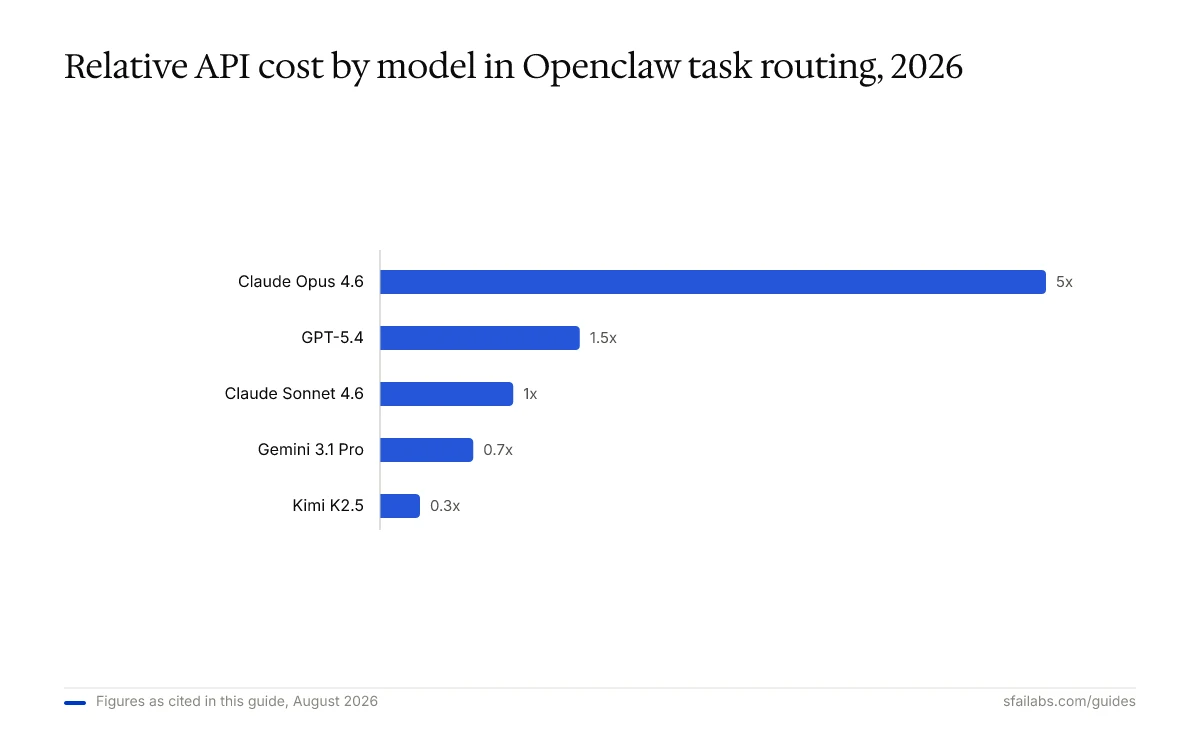
| Model | Typical Latency | Best For | Cost Relative |
|---|---|---|---|
| Claude Sonnet 4.6 | 2-5s | Daily tasks, code review, writing | 1x (baseline) |
| Claude Opus 4.6 | 5-15s | Complex reasoning, architecture decisions | 5x |
| Gemini 3.1 Pro | 2-4s | Research, long-context analysis | 0.7x |
| Kimi K2.5 | 3-6s | Cost-effective general tasks | 0.3x |
| GPT-5.4 | 3-8s | Broad capability, tool use | 1.5x |
Configure model tiering in your Openclaw settings by routing task types to appropriate models. Reserve Opus-class models for complex reasoning tasks and default to Sonnet-class or Gemini for everything else. This single change typically cuts average response time by 50% while reducing costs by 60-80%.
For details on configuring multiple models, see our Openclaw multi-model configuration guide.
Context Window Management
Context bloat is the silent performance killer. Openclaw retains all conversation history by default, and every tool output, error log, and intermediate result stays in context permanently. A 10 MB error log that gets dumped into context stays there and gets paid for with every subsequent API call.
The cost scaling is quadratic, not linear. Doubling the tokens in context roughly quadruples the compute cost and processing time. A lean 5K-token message costs approximately $0.025 per API call. A bloated 50K-token message costs $0.25, and it is ten times slower to process.
The 60% Rule
If your system prompt, workspace files, and memory results exceed 60% of the context window before the user even sends a message, you need to compress. Check your current utilization with:
openclaw sessions listLook for sessions larger than 500 KB. Those are the ones dragging your performance down.
Practical Steps
- Set a context limit. Reduce the default context window from 400K to 100K tokens. This forces Openclaw to manage context more aggressively, and in practice the agent rarely needs more than 100K for any single task.
- Isolate large outputs. When a tool returns a massive output (a full error log, a large file read), pipe it to a separate summarization step rather than letting it sit in context.
- Use
/compactproactively. Trigger manual compaction when you notice sessions getting sluggish rather than waiting for automatic compaction to kick in. - Start fresh for new topics. Run
/newwhen switching between unrelated tasks. Dragging a coding session’s context into a content writing task wastes tokens and confuses the model.
For a deep dive into memory architecture, see our Openclaw memory configuration guide.
Session Management
Long-running sessions are the most common cause of gradually degrading performance. The pattern is predictable: the agent starts fast, slows down over an hour, and becomes nearly unusable after a few hours of continuous use.
This happens because every exchange adds to the context. After 10 rounds of conversation, you are sending 150K tokens with every single API call, and most of those tokens are stale history the model does not need.
Reset sessions after completing each independent task. Teams that adopt session-per-task discipline typically see response times drop by 30-50% on average with zero loss in task quality.
# Check session sizes
openclaw sessions list

# Archive bloated sessions
openclaw sessions cleanup

# Start a clean session
openclaw /new
If you need continuity across sessions, write the key context to your MEMORY.md file before resetting. The memory system retrieves relevant context when needed without dragging the entire conversation history along.
Prompt Compression
Your workspace files are injected into every API call. Most default configurations include workspace files that are far larger than they need to be, and every extra kilobyte gets multiplied by every API request.
Workspace File Targets
| File | Target Size | Purpose |
|---|---|---|
SOUL.md |
Under 1 KB | Core personality and behavior rules |
AGENTS.md |
2-10 KB | Agent definitions and routing |
MEMORY.md |
Under 3 KB | Index of memory, not the memory itself |
TOOLS.md |
Under 1 KB | Tool definitions |
If any of these files exceeds its target, move the detailed content to a vault/ directory. Openclaw can search the vault when needed without injecting it all into every context window.
This is a common pitfall. An AGENTS.md that has ballooned to 45 KB with detailed instructions for 20+ agents means every single API call includes all 45 KB regardless of which agent is active. Moving agent-specific instructions to individual vault files can cut per-message context from 52K tokens to 8K, dropping response times from 12 seconds to 3 seconds.
Skill Minimization
Each enabled skill adds to the context that the agent evaluates on every request. An Openclaw instance with 30 skills enabled wastes tokens just deciding which skill to use, even when the task only requires one.
Audit your enabled skills and disable anything you are not actively using. Going from 25 skills to 8 can save 10-15% on token usage per request and trim about half a second off average response time.
For building focused, efficient skills, see our Openclaw skills development guide.
Caching Strategies
Caching is underutilized in most Openclaw deployments. Three layers of caching can reduce redundant API calls and speed up repeated operations.
Anthropic Prompt Caching
If you are using Claude models through Anthropic’s API, enable prompt caching. This caches the static portions of your prompt (system instructions, workspace files) so they do not get reprocessed on every call. The requirement is Openclaw version 2026.2.0 or later.
Prompt caching can reduce costs by up to 90% on the cached portion and speeds up responses because the model skips reprocessing the cached prefix. The catch: set your temperature to 0.2 or lower for deterministic tasks to maximize cache hit rates. Higher temperature values reduce cache effectiveness.
Response Caching for Repeated Queries
If your agent handles similar queries repeatedly (common in customer support or monitoring workflows), configure response caching at the gateway level. Identical or near-identical queries can return cached responses in milliseconds rather than waiting for a full model inference.
Embedding Caches for Memory Retrieval
If you use vector-search memory (the vault/ architecture described in the prompt compression section), cache your embedding results locally. The default nomic-embed-text model runs locally and returns results in approximately 45 milliseconds, but caching still helps when the same retrieval queries come up repeatedly during a session.
Heartbeat Optimization
Openclaw’s heartbeat system runs background tasks on a schedule: checking messages, running monitoring scripts, updating dashboards. Each heartbeat execution consumes tokens because it sends a prompt to the model, even if there is nothing to do.
The default heartbeat interval is aggressive for most use cases. Here’s how to tune it:
- Active monitoring (Slack/Discord response bots): 1-3 minute intervals are appropriate. The latency of message response matters.
- Periodic tasks (report generation, data pulls): 15-30 minute intervals are sufficient. Checking more frequently just burns tokens.
- Passive monitoring (log watching, alert triggers): 30-60 minute intervals. Most events trigger webhooks anyway, making frequent polling redundant.
As a concrete example: reducing the heartbeat interval from every 2 minutes to every 15 minutes for a monitoring agent that checks three data sources drops token consumption by 85%. The agent’s actual task response speed improves too, because less background context is being generated.
For scheduling configuration details, see our Openclaw heartbeat scheduling guide.
VPS and Hardware Sizing
No amount of software optimization compensates for insufficient hardware. These are the recommended minimum specifications:
| Workload | RAM | CPU | Storage |
|---|---|---|---|
| Single agent, text-only | 2 GB | 2 vCPU | 20 GB SSD |
| Single agent with browser automation | 4 GB | 2 vCPU | 40 GB SSD |
| Multi-agent (2-3 agents) | 8 GB | 4 vCPU | 60 GB SSD |
| Production with browser + monitoring | 8-16 GB | 4 vCPU | 80 GB SSD |
Common Hardware Bottlenecks
RAM starvation is the most frequent issue. The Openclaw gateway itself consumes 400-800 MB at idle. Each browser automation instance adds 200-400 MB. A 1 GB VPS will OOM-kill the process during Docker builds (exit code 137) and struggle during normal operation.
Disk I/O matters more than people expect. Session files, logs, and memory writes create sustained I/O load. HDD-backed VPS instances add 20-100 milliseconds per write operation. Use SSD-backed instances and monitor disk utilization with iostat -x 1 5. If %util exceeds 70%, your disk is the bottleneck.
Network location affects every API call. A VPS in Singapore connecting to Anthropic’s US-based API endpoints adds approximately 180 milliseconds of round-trip time to every request. For multi-step agent tasks that make 5-10 sequential API calls, that compounds to nearly 2 seconds of pure network overhead. Choose a VPS region close to your LLM provider’s endpoints.
Adding swap helps keep processes alive on low-memory VPS instances, but it shifts the problem to disk I/O. Swap is a survival mechanism, not a performance solution.
For Docker-specific deployment details, see our Openclaw Docker deployment guide. For hosting cost comparisons, check our Openclaw hosting costs breakdown.
Browser Resource Management
Browser automation is one of Openclaw’s most powerful features, and one of its biggest performance traps. Each Playwright browser instance consumes 200-400 MB of RAM and those instances do not always clean up properly.
Preventing Browser Memory Leaks
- Close browsers explicitly. After any browser automation task, ensure the browser instance is closed. Orphaned instances accumulate and silently consume RAM.
- Set instance limits. Configure a maximum number of concurrent browser instances. Two simultaneous instances on a 4 GB VPS is the practical ceiling.
- Use headless mode. Headed browser instances consume significantly more memory. Unless you need visual debugging, run headless.
- Monitor instance count. Periodically check running browser processes. If you see more instances than expected, restart the Openclaw container to clean them up.
# Check for browser processes inside the container
docker exec openclaw-gateway ps aux | grep -i chromium

# If orphaned instances exist, restart cleanly
docker compose restart openclaw-gateway
A common failure mode: an Openclaw instance that slows to a crawl every 48 hours. The root cause is typically browser instances from web scraping tasks that are not closing properly. Each instance leaks 300 MB. After 48 hours, the VPS runs out of RAM and starts swapping heavily. Adding explicit browser cleanup to the scraping skill’s completion step solves it permanently.
For browser automation setup, see our Openclaw browser mode configuration guide.
Frequently Asked Questions
Why is my Openclaw agent so slow even though my internet is fast?
Openclaw slowness rarely correlates with your internet bandwidth. The bottleneck is usually one of three things: context bloat from long sessions sending 100K+ tokens per API call, an underpowered VPS that is swapping to disk, or using an expensive high-latency model like Opus for tasks that Sonnet handles in a third of the time. Run openclaw sessions list to check session sizes and docker stats --no-stream to check RAM usage before looking at network issues.
What is the fastest model for Openclaw right now?
For general tasks, Claude Sonnet 4.6 and Gemini 3.1 Pro offer the best speed-to-quality ratio, both responding in 2-5 seconds for typical prompts. Kimi K2.5 is faster on simple tasks but less reliable on complex reasoning. The fastest approach is model tiering: route simple tasks to fast models and reserve Opus-class models for tasks that genuinely need deep reasoning.
Does Openclaw get slower over long sessions?
Yes, and it is by design. Each conversation round adds to the context that gets sent with every API call. After 10 rounds, you might be sending 150K tokens per request. The fix is resetting sessions after each independent task and using MEMORY.md for continuity instead of raw conversation history.
How much RAM does Openclaw need to run smoothly?
2 GB minimum for a single text-only agent. 4 GB if you use browser automation. 8 GB for multi-agent setups. The gateway alone consumes 400-800 MB at idle, and browser instances add 200-400 MB each. Running on a 1 GB VPS causes OOM kills during Docker builds and chronic swapping during operation.
How do I reduce token costs without making my agent dumber?
Model tiering is the highest-impact change. Use Sonnet-class models for 90% of tasks and Opus-class for the 10% that need it. Beyond that, compress your workspace files (move detailed content to vault/), reset sessions frequently, and tune heartbeat intervals. These four changes alone can take a $347/month bill down to $68/month.
Should I use Docker or bare metal for best Openclaw performance?
Docker adds minimal overhead for Openclaw. The gateway runs as a Node.js process, and Docker’s isolation layer adds negligible latency. Where Docker hurts is during the initial build (requires 2 GB RAM) and when volume mounts are on slow storage. If you are on a resource-constrained VPS, bare metal avoids the build overhead, but for production we recommend Docker for its restart policies, health checks, and clean upgrades.
Can I run multiple Openclaw agents on one VPS?
Yes, with enough resources. Each additional agent adds roughly 400-800 MB of RAM overhead at idle, more under load. Two agents on a 4 GB VPS works. Three agents on 4 GB does not. Budget 2-3 GB per agent for comfortable headroom, and use separate sessions for each agent to avoid context contamination.
Key Takeaways
- Start with model tiering. It delivers the largest speed gain (50-80%) with the least effort (10 minutes of configuration).
- Context bloat is the primary reason Openclaw slows down over time. Reset sessions after each independent task and keep workspace files lean.
- Compress your workspace files to their target sizes: SOUL.md under 1 KB, AGENTS.md under 10 KB, MEMORY.md under 3 KB. Move detailed content to
vault/. - Match your VPS to your workload: 2 GB minimum for text-only, 4 GB with browser automation, 8 GB for multi-agent setups.
- Tune heartbeat intervals to your actual monitoring needs. The default is too aggressive for most use cases and silently drains tokens in the background.
- Monitor browser instances if you use automation. Orphaned Playwright processes are the most common cause of gradual memory exhaustion on long-running deployments.
SFAI Labs