
You run a slash command, and OpenClaw tells you the skill does not exist. The skill file is right there in the directory. This is one of the most common support questions in the OpenClaw community, and the root cause is almost never what you expect.
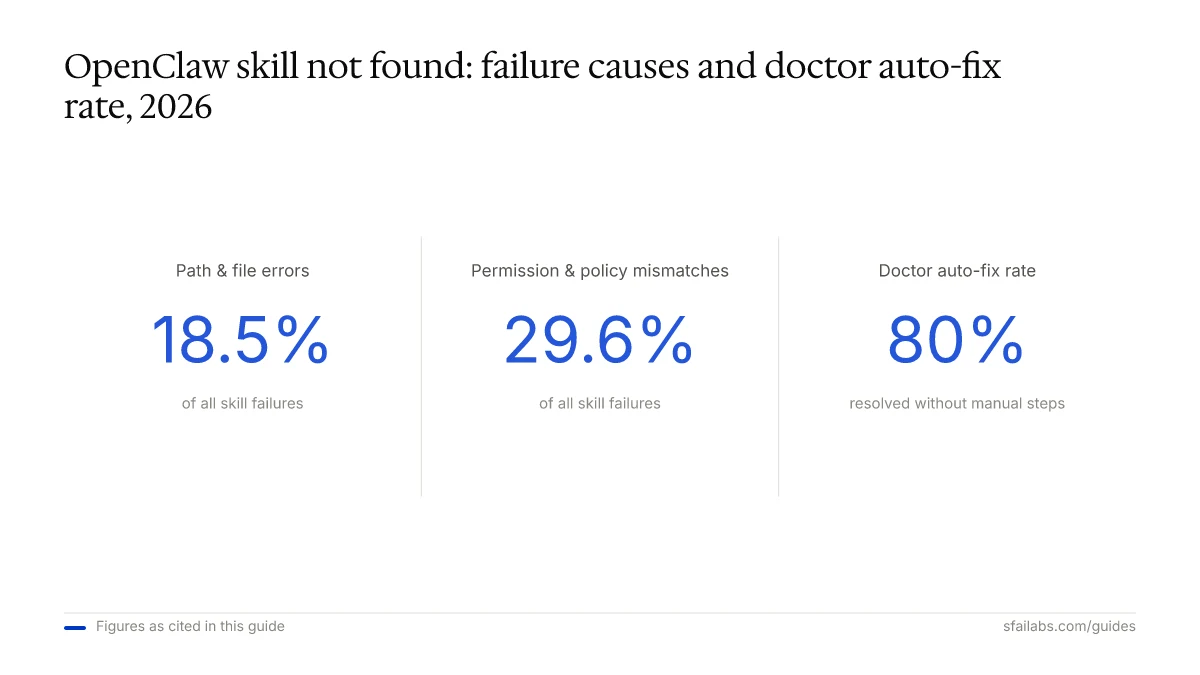
Path and file errors account for roughly 18.5% of all skill failures, with permission and policy mismatches adding another 29.6% on top. The good news: once you know where OpenClaw actually looks for skills and how it loads them, the fix is usually a one-line change.
This guide walks through every known cause of the “skill not found” error. If you have not installed OpenClaw yet, start with our setup guide first.
Diagnose the Problem in 60 Seconds
Before changing anything, run two commands. They tell you exactly what OpenClaw sees and what it does not.
Step 1: Check what skills OpenClaw recognizes.
openclaw skills list --eligibleIf your skill appears in this list, the problem is not discovery. Skip ahead to the SKILL.md format section. If it does not appear, continue to Step 2.
Step 2: Run the diagnostic tool.
openclaw doctor --deep --yesThis command auto-resolves approximately 80% of skill errors without manual intervention. It checks paths, permissions, dependencies, and configuration in one pass. If it fixes your issue, you are done. If not, read on for the specific root causes below.
Wrong Skill Directory Path
OpenClaw loads skills from six locations in a strict precedence order. If your skill file is in the wrong place, the agent never sees it.
| Priority | Location | Scope |
|---|---|---|
| 1 (highest) | <workspace>/skills/ |
Current project only |
| 2 | <workspace>/.agents/skills/ |
Per-agent in project |
| 3 | ~/.agents/skills/ |
Personal, all projects |
| 4 | ~/.openclaw/skills/ |
User-level global |
| 5 | Bundled skills | Ships with OpenClaw |
| 6 (lowest) | skills.load.extraDirs paths |
Custom config |
The most common mistake: placing a skill in ~/.openclaw/skills/ when you need it for a specific project, then wondering why it does not appear when you run OpenClaw from a different workspace. Project-level skills belong in <workspace>/skills/.
Another frequent issue involves extraDirs. If you configured custom paths in ~/.openclaw/openclaw.json, verify the path is absolute and the directory exists:
{
  "skills": {
    "load": {
      "extraDirs": ["/home/openclaw/workspace/skills"]
    }
  }
}
A typo in this path silently fails. OpenClaw does not warn you that an extraDirs path does not exist.
Docker users: The container filesystem is isolated. A skill at /home/user/skills/ on the host must be mounted into the container. Check your volume mounts with docker inspect openclaw | grep -A 5 Mounts and confirm the skill path is accessible inside the container. Our Docker deployment guide covers volume configuration in detail.
Missing or Malformed SKILL.md
Every skill is a folder containing a SKILL.md file. No SKILL.md, no skill. OpenClaw does not look for any other filename.
The filename is case-sensitive
skill.md, Skill.md, and SKILL.MD all fail. The file must be named exactly SKILL.md. This commonly trips up developers moving skills between macOS (case-insensitive filesystem by default) and Linux servers (case-sensitive). The skill works locally and breaks on the server.
Required frontmatter fields
The SKILL.md must begin with YAML frontmatter containing at least name and description:
---
name: my-skill
description: One-line summary of what this skill does.
---

# My Skill

Instructions for the agent go here.
If either field is missing, the skill is silently skipped during loading. No error message, no log entry. This is the single most frustrating failure mode because there is zero feedback.
Common frontmatter mistakes:
- Multi-line description without proper YAML quoting. Wrap long descriptions in double quotes.
- Tab characters in the frontmatter. YAML requires spaces, not tabs.
- Missing closing
---on the frontmatter block. - Special characters in the name field. Stick to lowercase letters, numbers, and hyphens.
Verify your frontmatter parses correctly
Extract and validate just the frontmatter:
sed -n '/^---$/,/^---$/p' SKILL.md > /tmp/frontmatter.yml
yamllint /tmp/frontmatter.yml
If yamllint is not installed, a quick visual check works: open the file, confirm the three dashes exist on both ends, and verify name: and description: are present with values.
Skill Name Typos and Mismatches
When you invoke a skill with /my-skill, OpenClaw matches that against the name field in the SKILL.md frontmatter. It does not match against the folder name. If the folder is called my-skill/ but the frontmatter says name: myskill, the slash command /my-skill will not find it.
Check for:
- Hyphens vs underscores (
my-skillvsmy_skill) - Spelling differences between the command you type and the
namefield - Trailing whitespace after the name value in the frontmatter
Run openclaw skills list and compare the registered name against what you are typing. The registered name is what matters.
File Permission Issues
OpenClaw’s gateway process runs under a specific user. If the SKILL.md file is not readable by that user, the skill is skipped.
# Check current permissions
ls -la ~/.openclaw/skills/my-skill/SKILL.md

# Fix permissions (make readable by all users)
chmod 644 ~/.openclaw/skills/my-skill/SKILL.md

# Fix ownership if needed (replace 'openclaw' with your gateway user)
sudo chown -R openclaw:openclaw ~/.openclaw/skills/my-skill/
On Linux servers, this is especially common when skills are copied over via scp or rsync as root. The files end up owned by root, and the OpenClaw gateway user cannot read them.
Docker-specific: The container user might differ from the host user. Files mounted from the host inherit host permissions, but UIDs may not match inside the container.
Skills Watcher Disabled
OpenClaw can watch for new skill files and load them automatically. If this feature is disabled, you must restart the gateway after adding or modifying any skill.
Check your configuration:
{
  "skills": {
    "load": {
      "watch": true,
      "watchDebounceMs": 250
    }
  }
}
If watch is false or absent, newly added skills will not appear until you restart. This catches many people who add a skill and immediately try to use it without restarting.
To restart the gateway:
# Docker
docker restart openclaw-gateway

# systemd
sudo systemctl restart openclaw
Known Version-Specific Bugs
Some versions of OpenClaw have confirmed bugs in skill discovery. GitHub Issue #10386 documents a bug where buildWorkspaceSkillSnapshot() only scans the bundled skills directory, ignoring workspace and extraDirs paths entirely.
Affected versions: 2026.2.3-1, 2026.2.22-2, 2026.3.1
Workaround: Add explicit file-read instructions to your AGENTS.md so the agent can manually read skill files on demand, bypassing the broken discovery path.
Permanent fix: Update to the latest OpenClaw version where this is resolved.
Check your version with openclaw --version and compare it against the changelog before spending time debugging configuration that might be a known bug.
Skill Organization Best Practices
Prevention beats troubleshooting. These conventions eliminate most “skill not found” errors before they happen.
Use a consistent naming convention. Name the folder and the name frontmatter field identically. If the folder is daily-report/, the name field should be daily-report. This removes an entire category of mismatch errors.
Keep one skill per folder. Each folder gets exactly one SKILL.md. Do not nest skill folders inside each other.
Validate before deploying. Before copying a skill to a server, run this locally:
openclaw skills list --eligible | grep my-skillIf it shows up locally, the file structure and frontmatter are correct. Any failure on the server is then an environment issue (permissions, paths, watcher), not a content issue.
Use project-level skills for project-specific workflows. Put them in <workspace>/skills/ rather than the global ~/.openclaw/skills/. This avoids name collisions and makes skills portable with the project. Our skills development guide covers building robust skills from scratch.
Document your skill paths. In team environments, add a note to your project README listing where skills live and how to install new ones. The most common “skill not found” report on teams comes from a developer who has the skill installed locally but never pushed it to the shared server.
Frequently Asked Questions
How do I fix “skill not found” in OpenClaw?
Run openclaw doctor --deep --yes first. It auto-fixes roughly 80% of skill loading issues. If the skill still does not appear in openclaw skills list --eligible, check the directory path against the six-level precedence table, verify the SKILL.md has valid frontmatter with name and description fields, and confirm file permissions allow the gateway user to read the file.
Where should I put my SKILL.md file?
For project-specific skills, use <your-project>/skills/<skill-name>/SKILL.md. For skills you want available across all projects, use ~/.openclaw/skills/<skill-name>/SKILL.md. The folder name does not technically need to match the name field, but keeping them identical prevents confusion.
Why does my skill work locally but not on the server?
Three common reasons. First, macOS is case-insensitive by default so skill.md works locally but fails on Linux. Second, file permissions differ when files are copied via scp or rsync as root. Third, the server may run an older OpenClaw version with known discovery bugs. Check all three.
How do I check which skills OpenClaw can see?
openclaw skills list shows all registered skills. Add --eligible to filter to skills that are runnable in your current environment, which also checks dependencies and permissions. If a skill appears in list but not in list --eligible, it has an unmet dependency.
Why did my skill disappear after restarting OpenClaw?
If skills are loaded from a Docker volume that is not persisted, a restart wipes them. Verify with docker inspect openclaw | grep -A 5 Mounts that you are using a named volume, not an anonymous one. Outside Docker, check that the skill directory path has not changed in your configuration file between restarts.
Does the skill name have to match the folder name?
No, OpenClaw matches the name field in the SKILL.md frontmatter, not the folder name. But we strongly recommend keeping them identical. Mismatches are the second most common cause of “skill not found” errors on teams where one person creates the skill and another person tries to invoke it by folder name.
Can file permissions cause “skill not found”?
Yes. If the gateway user cannot read the SKILL.md file, the skill is silently skipped. Run ls -la on the skill directory and verify the file is readable. On Linux servers, chmod 644 SKILL.md and chown to the gateway user resolves this in most cases.
What does openclaw doctor check for skills?
It validates directory structure, file permissions, frontmatter syntax, dependency availability, and configuration paths. The --deep flag adds binary availability checks for tools your skills depend on (like rg, jq, or node). The --yes flag auto-applies fixes it is confident about.
Key Takeaways
- Run
openclaw doctor --deep --yesas your first troubleshooting step. It resolves the majority of skill loading issues automatically. - Check the six-level skill precedence table to confirm your skill is in a directory OpenClaw scans.
- The SKILL.md filename is case-sensitive, requires
nameanddescriptionin the frontmatter, and must use spaces (not tabs) in YAML. - Keep folder names and frontmatter
namefields identical to avoid mismatch errors. - After adding skills, either enable the skills watcher or restart the gateway. New skills are not loaded automatically with the watcher disabled.
- Check your OpenClaw version against known bugs before debugging configuration. Some versions have confirmed skill discovery defects.
SFAI Labs