Most OpenClaw plus Ollama tutorials stop at the happy path: install Ollama, pull a model, paste a base URL into your OpenClaw config, and declare victory. Then you send your first real agent task, the tool call silently fails, and you spend two hours wondering why a setup that “works” does not work.
This guide walks through a full local inference setup for OpenClaw with Ollama, names the configuration choices that matter, and flags the one that breaks tool calling for almost everyone on their first try. If you already have OpenClaw installed and want to swap a cloud model for a locally hosted one, start here. If you have not installed OpenClaw yet, see the installation guide first.
Why Run OpenClaw on Local Models
There are three honest reasons to swap a cloud model for a local one.
Privacy. OpenClaw reads your memory files, your daily log, and whatever documents you hand it. If any of that is sensitive, sending it to a third-party API means trusting the provider’s retention policy, their sub-processors, and their jurisdiction. With Ollama, nothing leaves the host machine.
Cost predictability. A heavy OpenClaw user on Claude Sonnet or GPT runs about 5 to 20 dollars per month on a laptop-class workload and well into triple digits when the heartbeat is active on multiple projects. A local model costs you electricity and the one-time hardware purchase.
Offline and air-gapped work. If your machine is on a plane, a client network with egress filtering, or a compliance-driven air-gapped environment, a cloud model is not an option. Ollama runs happily with no internet connection once the model is pulled.
The trade-off is real: local models are slower, less capable at multi-step reasoning, and have smaller context windows than the frontier cloud models. The rest of this guide is about getting the best version of that trade-off.
Install Ollama
Ollama is a single binary that bundles llama.cpp, handles model downloads, and exposes an HTTP API. Install it on the host where you want inference to run.
macOS: Download the installer from ollama.com/download and run it. Ollama registers as a menu bar app and starts a local server on port 11434.
Linux:
curl -fsSL https://ollama.com/install.sh | shThis installs a systemd service on most distributions. Verify with:
systemctl status ollamaWindows: Download the Windows installer from ollama.com/download. The installer sets up the service automatically.
Confirm the server is reachable:
curl http://localhost:11434/api/tagsYou should get a JSON response listing installed models (empty on a fresh install).
Choose a Model
Ollama’s model library is large and inconsistent in quality. For OpenClaw specifically, three models cover most use cases.
Qwen 2.5 14B (qwen2.5:14b) — The default pick for a workstation with 16GB+ of VRAM. Strong tool calling, solid reasoning, and handles long contexts without degrading as badly as Llama 3.2 at the same size.
Llama 3.3 70B (llama3.3:70b) — If you have 48GB of VRAM or an M2/M3 Ultra with 64GB+ unified memory, this is the closest local approximation to cloud quality. Tool calling is reliable and reasoning holds up across 10+ step chains.
Llama 3.2 3B (llama3.2:3b) — The fast option for laptops. Don’t expect frontier-level reasoning; it is useful for short tasks, classification, and quick lookups where you care about latency more than quality.
Pull the model you chose:
ollama pull qwen2.5:14bFor coding-heavy agent tasks, swap in DeepSeek Coder V2 (deepseek-coder-v2:16b) or Qwen 2.5 Coder (qwen2.5-coder:14b). Both outperform general-purpose models at code generation and code review tasks.
Hardware Requirements by Model Size
The rule of thumb for 4-bit quantized models (the default in Ollama) is roughly 0.6 GB of VRAM per billion parameters, plus headroom for context.
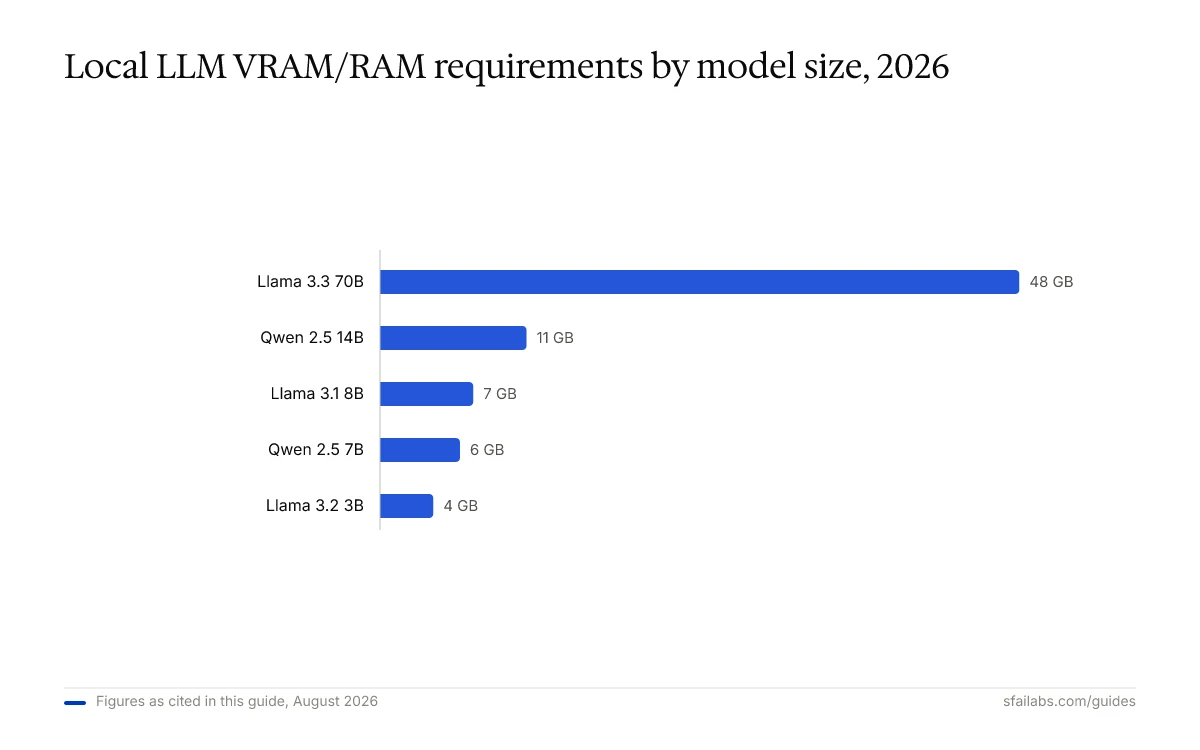
| Model | Parameters | Quantization | VRAM/RAM | Suggested hardware |
|---|---|---|---|---|
| Llama 3.2 3B | 3B | q4_K_M | 3–4 GB | Laptop (8GB RAM minimum) |
| Qwen 2.5 7B | 7B | q4_K_M | 5–6 GB | 8GB GPU or 16GB M-series Mac |
| Llama 3.1 8B | 8B | q4_K_M | 6–7 GB | 8GB GPU or 16GB M-series Mac |
| Qwen 2.5 14B | 14B | q4_K_M | 9–11 GB | 12GB+ GPU or 24GB M-series Mac |
| Llama 3.3 70B | 70B | q4_K_M | 38–48 GB | 48GB workstation GPU or Mac Studio (64GB+) |
Two things matter more than the raw number. First, you want the full model to fit in VRAM. Splitting across VRAM and system RAM causes a 5–10x slowdown. Second, a larger context window costs additional memory; plan for 2–4 GB extra if you run OpenClaw at its recommended 64k context length.
NVIDIA with CUDA is the default. AMD GPUs work via ROCm but with less polish. Apple Silicon unified memory is a surprisingly good fit because there is no VRAM/RAM split; an M3 Max with 64GB can comfortably run 70B models that would require a 48GB NVIDIA card. For more detail, see the OpenClaw hardware requirements guide.
Configure OpenClaw to Use Ollama
OpenClaw supports Ollama as a first-class provider. The minimal config lives in your OpenClaw workspace config file (typically config/providers.yaml or the equivalent JSON depending on your install).
providers:
  ollama:
    api: "ollama"
    baseUrl: "http://localhost:11434"
    model: "qwen2.5:14b"
    contextWindow: 65536
    maxTokens: 8192
Set the environment variable that tells OpenClaw an API key is not required for local Ollama:
export OLLAMA_API_KEY="ollama-local"Restart OpenClaw to pick up the new config. On a fresh install, you can also run openclaw onboard and select Ollama from the interactive provider list to generate this block automatically.
The v1 Endpoint Trap That Breaks Tool Calling
This is the configuration mistake that eats the most time, and almost every public tutorial gets it wrong.
Ollama exposes two API surfaces on port 11434:
http://localhost:11434— the native Ollama APIhttp://localhost:11434/v1— an OpenAI-compatible API
Every tutorial that starts with “Ollama is a drop-in replacement for OpenAI” uses the /v1 path. For a plain chat completion it works fine. For an agent framework like OpenClaw that relies on structured tool calls, the /v1 path breaks in subtle ways: tool call deltas do not stream correctly, function arguments arrive malformed, and the agent silently falls back to plain text responses.
Wrong:
providers:
  ollama:
    api: "openai"
    baseUrl: "http://localhost:11434/v1"
    model: "qwen2.5:14b"
Right:
providers:
  ollama:
    api: "ollama"
    baseUrl: "http://localhost:11434"
    model: "qwen2.5:14b"
The difference is two lines. The outcome is the difference between an agent that works and one that looks like it works until you ask it to do something real. When you see OpenClaw respond fluently but never call a tool, this is the first thing to check.
Set the Context Window
OpenClaw agents need room to read their memory files, your prompt, the conversation so far, and any tool outputs. The recommended context window for agent workloads is at least 64,000 tokens.
Ollama’s default context window for a loaded model is 8,192 tokens. That is not enough. OpenClaw will either truncate aggressively or spend half of every turn re-reading memory files it cannot keep in context.
Override the context window in the provider config:
providers:
  ollama:
    api: "ollama"
    baseUrl: "http://localhost:11434"
    model: "qwen2.5:14b"
    contextWindow: 65536
    maxTokens: 8192
contextWindow sets the total token budget Ollama allocates when the model loads. maxTokens is the cap on the response length in a single turn. The first time you raise these values, watch your GPU memory: a 64k context on a 14B model adds roughly 2–3 GB of VRAM overhead compared to the 8k default.
If you hit out-of-memory errors after raising the context window, either switch to a smaller model or drop to contextWindow: 32768 as a middle ground.
Run Your First Local Prompt
With the config saved and Ollama running, send a test prompt through your usual OpenClaw channel (Telegram, CLI, or direct API). Start with something that exercises a tool call so you can verify the full pipeline:
“Check the weather in Amsterdam right now and tell me if I should bring a jacket.”
If the agent returns a temperature and a recommendation, tool calling is working. If it responds with “I cannot check real-time weather” despite having the web search skill installed, your config is almost certainly on the /v1 path. Go back to the previous section and fix it.
Then try a task that stresses the context window:
“Read my current project memory file, summarize the three highest-priority items, and draft a status update for my team.”
This exercises memory reading, summarization, and drafting in one turn. On a correctly configured 14B+ model at 64k context, this should complete in 20–60 seconds depending on hardware.
Remote Ollama Over the LAN
Running Ollama on your laptop is fine for a 3B or 7B model. For anything larger, the sensible pattern is a dedicated inference host: a desktop with a real GPU or a Mac Studio sitting on your network. OpenClaw then runs anywhere (laptop, small VPS, Raspberry Pi) and sends requests over LAN.
On the inference host, start Ollama bound to all interfaces instead of loopback:
OLLAMA_HOST=0.0.0.0:11434 ollama serveOn macOS, set this in launchctl:
launchctl setenv OLLAMA_HOST "0.0.0.0:11434"Restart Ollama after setting it.
On the OpenClaw client, point to the inference host’s LAN address:
providers:
  ollama:
    api: "ollama"
    baseUrl: "http://192.168.1.50:11434"
    model: "qwen2.5:14b"
    contextWindow: 65536
    maxTokens: 8192
Keep api: "ollama" and keep the URL without /v1. Both rules still apply over the network.
Latency-wise, a gigabit LAN adds 1–3 ms of round-trip, which is noise compared to inference time. For security, put the inference host on a trusted network segment; the native Ollama API has no authentication, so never expose port 11434 to the public internet.
Trade-offs vs Cloud Models
Local Ollama is not a drop-in replacement for Claude Sonnet or GPT. Here is the honest comparison for OpenClaw workloads.
| Dimension | Cloud (Claude Sonnet 4.6 / GPT-5.4) | Local (Qwen 2.5 14B) | Local (Llama 3.3 70B) |
|---|---|---|---|
| Latency, first token | 300–800 ms | 200–500 ms | 400–900 ms |
| Throughput | 50–80 tok/s | 20–40 tok/s (single GPU) | 10–25 tok/s |
| Context window | 200k+ | 64k (practical) | 64k (practical) |
| Tool calling reliability | Very high | Good with correct config | Very good |
| Multi-step reasoning | Very high | Acceptable | Good |
| Cost per 1M tokens | $3–$15 (blended in/out) | Electricity only | Electricity only |
| Privacy | Data leaves your machine | On-device | On-device |
The dimension that catches people off guard is context window. Many OpenClaw workflows assume a 100k+ context is available. If your agent routinely needs to read a large codebase, a transcript, or a long document, Qwen 2.5 14B at 64k will truncate aggressively and the outputs will suffer. For those workflows, Llama 3.3 70B helps on quality but not on context, and you may still need to fall back to a cloud model.
When Not to Use Ollama with OpenClaw
Every setup post on this topic pretends local is always better. It is not. Stay on a cloud model when any of the following is true:
- Your workflow depends on 100k+ context. Local models cap out around 64k in practice. Long-document analysis, large codebase refactors, and full-transcript summarization are still cloud territory.
- You run long autonomous chains. If the heartbeat triggers 10-step tool sequences, each step compounds any reasoning weakness. Frontier cloud models degrade gracefully; local 14B models do not.
- You care more about quality than marginal cost. If you are running OpenClaw 2 hours a day on a single project, your cloud bill is 10 to 20 dollars per month. A 48GB GPU to match that quality is 2000+ dollars upfront. The payback period only works at heavy usage.
- You cannot keep the model in VRAM. Splitting a model across GPU and system RAM makes it slow enough that you will stop using it. If the model does not fit, pick a smaller one rather than accepting the slowdown.
A common production pattern at SFAI Labs is to run both: a local Ollama provider for private or cheap tasks, a cloud provider for heavy reasoning and long-context jobs. OpenClaw supports multiple providers in the same config, and you can route per task.
Frequently Asked Questions
Does OpenClaw work offline with Ollama?
Yes, as long as the model is already pulled and any skills you use do not require network access. Core OpenClaw plus Ollama runs fully offline. Skills that call external APIs (web search, email, weather) need network access; disable them for air-gapped work.
Which Ollama model is best for OpenClaw?
For most users on a workstation-class machine, Qwen 2.5 14B is the best default. It has strong tool calling, handles long context better than Llama 3.2, and fits in 12GB of VRAM. If you have 48GB+ of VRAM or unified memory, Llama 3.3 70B gets closer to cloud quality. For laptops, Llama 3.2 3B is the fastest but least capable.
Why does tool calling fail with Ollama?
The most common cause is using the OpenAI-compatible /v1 endpoint instead of the native Ollama API. Set baseUrl: "http://localhost:11434" without the /v1 suffix and api: "ollama" in your provider config. The /v1 path does not stream tool call deltas correctly, so OpenClaw sees malformed tool arguments and falls back to plain text.
How do I set the context window for Ollama in OpenClaw?
Set contextWindow in your provider config, for example contextWindow: 65536. Without this override, Ollama defaults to 8,192 tokens, which is not enough for agent workloads. OpenClaw recommends at least 64,000 tokens for reliable agent behavior. Larger contexts cost additional VRAM, so verify your GPU has headroom after raising this value.
Can I run Ollama on a separate machine from OpenClaw?
Yes, and it is a common pattern. Start Ollama with OLLAMA_HOST=0.0.0.0:11434 on the inference host, then point OpenClaw at the host’s LAN address (for example http://192.168.1.50:11434). Keep the native API path (no /v1). Do not expose Ollama to the public internet; it has no built-in authentication.
Is a local Ollama model as good as Claude Sonnet or GPT?
No, not in absolute terms. Frontier cloud models still lead on multi-step reasoning, tool use reliability, and context window. Qwen 2.5 14B is strong enough for many OpenClaw tasks and Llama 3.3 70B narrows the gap further, but there are workflows where a cloud model clearly wins. Use local for privacy, cost, and offline; use cloud for the hardest reasoning and longest contexts.
How do I switch between Ollama and a cloud model?
OpenClaw supports multiple providers in the same config file. Define both and set the default for a given task. Many users keep Ollama as the default for privacy-sensitive work and add a cloud provider (Anthropic or OpenAI) for heavy reasoning tasks. See the OpenClaw AI agent framework guide for multi-provider routing patterns.
What hardware do I need to run OpenClaw with a local LLM?
For a 3B model, 8GB of RAM is enough. For a 7B–8B model, plan on 8GB of VRAM or a 16GB M-series Mac. For a 14B model, 12GB+ of VRAM or 24GB unified memory. For a 70B model, 48GB workstation GPU or a 64GB+ Mac Studio. Always fit the full model plus context in VRAM; splitting to system RAM causes a 5–10x slowdown.
Key Takeaways
- Local Ollama with OpenClaw buys you privacy, predictable cost, and offline capability, at the price of slower throughput and smaller context.
- Use the native Ollama API with
baseUrl: "http://localhost:11434"andapi: "ollama". Avoid the/v1path; it breaks tool calling in subtle ways. - Set
contextWindow: 65536explicitly. Ollama’s 8k default is too small for agent workloads. - Qwen 2.5 14B is the best default for workstation-class hardware. Llama 3.3 70B is closer to cloud quality if you have the VRAM.
- For serious local inference, run Ollama on a dedicated GPU host and reach it over LAN. Keep OpenClaw wherever you want.
- Stay cloud for 100k+ context tasks, long autonomous chains, and hardest-reasoning jobs. Run both providers side by side when the workload mix justifies it.
SFAI Labs