Connecting OpenClaw to Slack takes 15 minutes. Connecting it to Microsoft Teams takes 30 to 45. The extra time goes to Azure Entra ID app registration, Bot Framework resource creation, and a manifest file that you have to package into a zip before Teams will acknowledge your bot exists. If your organization runs on Teams, that overhead is worth it. Teams gives you enterprise-grade identity management, per-team governance, and access to meeting context that no other chat platform offers an AI agent.
This guide walks through the full setup: registering an app in Azure, creating a Bot Framework resource, configuring OpenClaw, packaging and installing the Teams app, and building practical workflows once the connection is live. We cover both the full Bot Framework path (recommended) and the simpler outgoing webhook approach for teams that want to test the waters first.
Why Teams Is Harder Than Slack (and Why It Is Worth It)
Other guides gloss over this. We will not. Microsoft Teams bot setup is genuinely more complex than Slack, Discord, or Telegram. Here is where the time goes:
| Step | Teams | Slack |
|---|---|---|
| Identity provider registration | Azure Entra ID (multi-step) | Not required |
| Bot resource creation | Azure Bot Service (separate step) | Part of Slack App creation |
| App packaging | Manifest JSON + zip file | Not required |
| Installation | Sideload or Admin Center approval | One-click OAuth install |
| Auth model | OAuth 2.0 with client secrets | Bot token + App token |
That extra complexity buys you governance. In Slack, anyone with admin permissions can install an app and it immediately has access to every channel it is invited to. In Teams, IT controls which apps can be installed, who can use them, and what data they touch. For a 10-person startup, that governance is overhead. For a 500-person enterprise with compliance requirements, it is the reason Teams is the only acceptable choice.
Teams also gives your bot access to things Slack cannot: meeting transcripts, SharePoint document libraries, and the Microsoft Graph API for pulling calendar events, user presence, and organizational hierarchy. If your use case involves summarizing meetings or pulling data from Microsoft 365, Teams is the only channel that gets you there natively.
Before You Start
You need four things in place:
-
OpenClaw installed and running. If you have not set this up yet, follow our OpenClaw setup guide. That guide covers installation, workspace files, memory, and model configuration.
-
An Azure account with an active subscription. The free tier works for development and low-volume production. You need permission to create app registrations and bot resources. If your organization restricts this, talk to your Azure AD admin before starting.
-
Microsoft Teams with app sideloading enabled. In the Teams Admin Center, go to Teams apps > Setup policies and verify that Upload custom apps is turned on. If it is not, you will need an admin to enable it or deploy through the Admin Center directly.
-
A publicly accessible HTTPS endpoint for your OpenClaw gateway. Unlike Slack (which supports Socket Mode for firewalled setups), Teams requires your bot to receive inbound HTTPS requests from the Bot Framework Service. If OpenClaw runs on a VPS with a domain, use that URL. For local development, use a tunnel like ngrok:
ngrok http 3978.
This is the biggest infrastructure difference from Slack. Slack bots can reach out to Slack via WebSocket. Teams bots must accept inbound requests. Plan for this before you start.
Step 1: Register an App in Azure Entra ID
Every Teams bot needs an identity in Azure Entra ID (formerly Azure Active Directory). This identity is how Microsoft authenticates your bot when it sends and receives messages.
- Go to the Azure portal
- Navigate to Microsoft Entra ID > App registrations
- Click + New registration
- Configure:
| Field | Value |
|---|---|
| Name | OpenClaw Teams Bot |
| Supported account types | Accounts in any organizational directory (Multitenant) |
| Redirect URI | Leave blank for now |
- Click Register
After registration, you land on the app’s Overview page. Copy two values:
| Value | Where to Find It | What It Looks Like |
|---|---|---|
| Application (client) ID | Overview page | a1b2c3d4-e5f6-7890-abcd-ef1234567890 |
| Directory (tenant) ID | Overview page | f0e1d2c3-b4a5-6789-0fed-cba987654321 |
Now create a client secret:
- Go to Certificates & secrets in the left sidebar
- Click + New client secret
- Add a description:
OpenClaw bot secret - Set expiration to 24 months (the maximum)
- Click Add
- Copy the Value column immediately. You will not see it again after navigating away.
You now have three credentials: client ID, tenant ID, and client secret. Store all three securely.
# Add to your .env file
AZURE_APP_ID=a1b2c3d4-e5f6-7890-abcd-ef1234567890
AZURE_APP_SECRET=your-client-secret-value-here
AZURE_TENANT_ID=f0e1d2c3-b4a5-6789-0fed-cba987654321
Step 2: Create an Azure Bot Resource
The Entra ID app gives your bot an identity. The Azure Bot resource connects that identity to the Bot Framework Service, which is the message relay between Teams and your OpenClaw gateway.
- In the Azure portal, search for Azure Bot and click Create
- Configure:
| Field | Value |
|---|---|
| Bot handle | openclaw-teams-bot |
| Subscription | Your Azure subscription |
| Resource group | Create new or use existing |
| Pricing tier | F0 (Free) for development, S1 for production |
| Microsoft App ID | Use existing app registration |
| App ID | Paste your Application (client) ID from Step 1 |
| App type | Multi Tenant |
- Click Review + create, then Create
After deployment completes (usually under a minute), navigate to the bot resource and configure the messaging endpoint:
- Go to Configuration in the left sidebar
- Set Messaging endpoint to your OpenClaw gateway URL plus the Teams webhook path:
https://your-server.com/api/teams/messagesFor local development with ngrok:
https://abc123.ngrok-free.app/api/teams/messages- Click Apply
Now enable the Teams channel:
- Go to Channels in the left sidebar
- Click Microsoft Teams
- Accept the terms of service
- Click Apply
Your bot resource is now configured to relay messages between Teams and your OpenClaw gateway.
Step 3: Configure OpenClaw for Teams
With the Azure credentials in hand, tell OpenClaw how to connect. Open your openclaw.json (typically at ~/.openclaw/openclaw.json) and add the Teams channel:
{
  "channels": {
    "msteams": {
      "enabled": true,
      "appId": "${AZURE_APP_ID}",
      "appSecret": "${AZURE_APP_SECRET}",
      "tenantId": "${AZURE_TENANT_ID}",
      "port": 3978
    }
  }
}
OpenClaw reads the environment variables at runtime if you use the ${VAR} syntax. If you prefer, set the environment variables and use the minimal config:
{
  "channels": {
    "msteams": {
      "enabled": true
    }
  }
}
OpenClaw defaults to reading AZURE_APP_ID, AZURE_APP_SECRET, and AZURE_TENANT_ID from the environment for the Teams channel.
Restart the gateway:
openclaw gateway restartCheck the logs:
openclaw logs --followYou should see a message indicating the Teams Bot Framework listener is active on port 3978. If you see authentication errors, verify your client secret has not expired and that the app ID matches between Azure and your config.
Step 4: Build and Install the Teams App
Teams requires a formal app package before your bot can appear in the client. This is a zip file containing a manifest and two icon files.
Create the App Manifest
Create a directory for your Teams app package:
mkdir -p ~/openclaw-teams-appCreate manifest.json inside that directory:
{
  "$schema": "https://developer.microsoft.com/json-schemas/teams/v1.17/MicrosoftTeams.schema.json",
  "manifestVersion": "1.17",
  "version": "1.0.0",
  "id": "YOUR_AZURE_APP_ID",
  "developer": {
    "name": "Your Organization",
    "websiteUrl": "https://your-company.com",
    "privacyUrl": "https://your-company.com/privacy",
    "termsOfUseUrl": "https://your-company.com/terms"
  },
  "name": {
    "short": "OpenClaw",
    "full": "OpenClaw AI Assistant"
  },
  "description": {
    "short": "AI assistant powered by OpenClaw",
    "full": "An AI agent that answers questions, summarizes meetings, triages support tickets, and automates workflows directly in Microsoft Teams."
  },
  "icons": {
    "color": "color.png",
    "outline": "outline.png"
  },
  "accentColor": "#4F46E5",
  "bots": [
    {
      "botId": "YOUR_AZURE_APP_ID",
      "scopes": ["personal", "team", "groupChat"],
      "supportsFiles": true,
      "isNotificationOnly": false
    }
  ],
  "permissions": ["identity", "messageTeamMembers"],
  "validDomains": ["your-server.com"]
}
Replace YOUR_AZURE_APP_ID with your actual Application (client) ID in both the id and botId fields. Replace your-server.com with the domain where your OpenClaw gateway runs.
You also need two icon files in the same directory:
| File | Size | Format | Purpose |
|---|---|---|---|
color.png |
192x192 px | PNG with transparent background | Full-color app icon |
outline.png |
32x32 px | PNG with transparent background | White outline icon for Teams UI |
Use your company logo or the OpenClaw logo. Teams will reject the package if these files are missing or the wrong size.
Package and Sideload
Zip the three files together:
cd ~/openclaw-teams-app
zip openclaw-teams.zip manifest.json color.png outline.png
Install in Teams:
- Open Microsoft Teams
- Click Apps in the left sidebar
- Click Manage your apps (bottom of the panel)
- Click Upload an app > Upload a custom app
- Select your
openclaw-teams.zipfile - Click Add when prompted
Your OpenClaw bot now appears in Teams. You can find it in the Apps section and start a chat.
Step 5: Test the Connection
Run three tests in order:
DM test. Find the OpenClaw bot in Teams Apps and open a personal chat. Send: “What can you do?” The agent should respond with an overview of its configured capabilities.
Channel test. Add the bot to a team channel (click the + in the channel header, search for your bot, and add it). Send @OpenClaw what is the current date? in the channel. The bot should respond in the channel thread.
File test. Upload a document to a channel where the bot is active and ask it to summarize the contents. This verifies that file access is working through the Bot Framework.
If something breaks:
| Symptom | Likely Cause | Fix |
|---|---|---|
| Bot does not appear in Teams | Manifest packaging error | Verify zip contains all 3 files at the root level, not nested in a folder |
| No response to messages | Gateway not reachable | Check ngrok is running (dev) or your server’s port 3978 is accessible (prod) |
| 401 errors in OpenClaw logs | Client secret mismatch | Regenerate the secret in Azure and update your .env file |
| Bot responds in DM but not channels | Bot not added to channel | Add the bot to the team via Apps tab in the channel |
| “App is blocked” error | Sideloading disabled | Ask your Teams admin to enable Upload custom apps in Setup policies |
| Timeout errors | Messaging endpoint wrong | Verify the URL in Azure Bot Configuration matches your gateway exactly |
A useful diagnostic: openclaw channels status --probe shows whether the Teams Bot Framework listener is active and accepting connections.
The Outgoing Webhook Alternative
If the full Bot Framework setup feels like overkill for your use case, Teams supports outgoing webhooks as a lighter option. An outgoing webhook lets a team channel send messages to an external URL when users @mention a specific name. No Azure app registration. No manifest file. No Bot Framework resource.
To set one up:
- Go to the team where you want the webhook
- Click the … menu next to the team name
- Select Manage team > Apps > Create an outgoing webhook
- Name it
OpenClaw, add a description, and set the callback URL to your gateway endpoint - Copy the security token Teams generates
Configure OpenClaw to accept webhook requests:
{
  "channels": {
    "msteams-webhook": {
      "enabled": true,
      "mode": "outgoing-webhook",
      "securityToken": "${TEAMS_WEBHOOK_TOKEN}",
      "port": 3978
    }
  }
}
The tradeoffs are real. Outgoing webhooks can only respond in the channel where they are @mentioned. They cannot send proactive messages, access files, read message history, or work in DMs. They are scoped to a single team (not organization-wide). And Microsoft has been steadily deprecating webhook-based integrations since 2024, retiring Office 365 Connectors entirely.
Use outgoing webhooks for a proof-of-concept demo to show stakeholders what an AI bot could do in Teams. Then invest in the full Bot Framework path for production.
What to Build First
The connection is live. Your team can message the bot. The same trap applies here as with Slack: if you treat it as a shared ChatGPT window, usage drops within two weeks. Deliberate workflows sustain adoption.
Week 1: Team Q&A Bot
Start with something immediately useful. Create an OpenClaw skill that points to your team’s documentation:
---
name: team-knowledge
description: Answer questions about internal processes, tools, and documentation.
tools:
  - shell
---

# Team Knowledge Base

## Sources

When asked about internal processes, check:
- ~/docs/runbooks/ for operational procedures
- ~/docs/onboarding/ for new hire information
- ~/docs/architecture/ for system design decisions

## Rules

- Cite which document the answer came from
- If no document covers the question, say so
- Do not fabricate internal procedures
Add the bot to channels like General or a dedicated #ask-ai channel. Tell the team to @mention the bot when they have questions they would normally search SharePoint or Confluence for.
Within the first week, you discover which questions come up repeatedly and which internal docs are missing. That signal alone justifies the setup time.
Week 2: Meeting Summarizer
This is where Teams integration pulls ahead of every other channel. Teams can generate meeting transcripts natively. Your OpenClaw agent can access those transcripts through the Microsoft Graph API and produce structured summaries.
Create a skill for meeting processing:
---
name: meeting-summary
description: Summarize Teams meeting transcripts and extract action items.
tools:
  - shell
---

# Meeting Summary Skill

## When Triggered

When a user says "summarize the last meeting" or "what were the action items from [meeting name]":

1. Query Microsoft Graph for recent meeting transcripts
2. Extract: key decisions, action items (with owners), open questions
3. Format as a structured summary
4. Post to the channel or DM the requesting user

## Graph API Call

curl -s -H "Authorization: Bearer $GRAPH_ACCESS_TOKEN" \
  "https://graph.microsoft.com/v1.0/me/onlineMeetings?$orderby=startDateTime desc&$top=5" \
  | jq '.value[] | {subject, startDateTime, id}'

## Output Format

**Meeting:** [Subject]
**Date:** [Date]

**Decisions:**
- [Decision 1]
- [Decision 2]

**Action Items:**
- [ ] [Owner]: [Task] by [Date]

**Open Questions:**
- [Question needing follow-up]
Meeting summarization requires additional Graph API permissions (OnlineMeetings.Read, OnlineMeetingTranscript.Read.All). Add these to your Entra ID app registration under API permissions and get admin consent.
The result: meeting recap emails become unnecessary. The bot posts the summary in the team channel within a minute of the meeting ending, saving everyone the 20 minutes of manual note distribution.
Week 3: IT Support Triage
For IT teams, this is the highest-value workflow. Configure your agent to monitor a support channel and classify incoming requests:
## IT Support Monitor

When a message arrives in the IT-Support channel:
1. Classify the request: password reset, access request, hardware issue, software bug, network problem, other
2. Add a reaction emoji by category (lock for password, key for access, computer for hardware)
3. If classified as "password reset" or "access request", reply with self-service instructions and relevant links
4. If classified as "hardware issue" or "network problem", notify the on-call technician by posting to the IT-Urgent channel
5. Log the ticket category, timestamp, and user to the support tracking database
The bot handles first-response triage. Password resets and common access requests get self-service instructions immediately. Complex issues get routed to the right person. For a 200-person organization, this cuts the IT team’s Tier 1 ticket volume significantly. This approach can reduce mean first-response time from 45 minutes to under 3.
Enterprise Deployment: Admin Center vs Sideloading
Sideloading works for testing and small teams. For organization-wide deployment, you need the Teams Admin Center.
Sideloading (what we covered in Step 4):
- Any user with sideloading permissions can install the app
- App is available only to the user who uploaded it (and teams they add it to)
- No IT approval workflow
- Good for: development, pilots, teams under 50 people
Teams Admin Center deployment:
- IT admin uploads the app package to the Admin Center
- Admin controls who can see and install the app via setup policies
- App appears in the organization’s app catalog
- Supports permission policies to restrict which teams can use the bot
- Good for: organization-wide rollout, regulated industries, audit requirements
To deploy through the Admin Center:
- Go to admin.teams.microsoft.com
- Navigate to Teams apps > Manage apps
- Click Upload new app and select your zip package
- The app enters a review state
- Once approved, configure Setup policies to make the app available to specific user groups
- Configure Permission policies to restrict which users can interact with the bot
For regulated industries (healthcare, financial services), the Admin Center path is mandatory. It gives you the audit trail and policy enforcement that compliance requires.
Frequently Asked Questions
Do I need a paid Azure subscription for the Teams bot?
The free Azure tier includes Azure Bot Service on the F0 (free) pricing plan, which handles up to 10,000 messages per month. For most teams getting started, this is sufficient. The S1 (Standard) tier removes the message limit and costs about $0.50 per 1,000 messages. The Azure Entra ID app registration itself is free on any subscription tier.
Can I skip Azure and just use a webhook?
For a limited proof of concept, yes. Outgoing webhooks let you respond to @mentions in a single team without any Azure registration. But webhooks cannot send proactive messages, access files, work in DMs, or be deployed organization-wide. Microsoft has also been deprecating webhook-based integrations. For anything beyond a demo, use the full Bot Framework path.
Why does Teams require a public HTTPS endpoint when Slack does not?
Slack offers Socket Mode, where your bot opens an outbound WebSocket connection to Slack’s servers. Teams uses the Bot Framework Service, which sends inbound HTTP requests to your bot’s messaging endpoint. This architectural choice reflects Microsoft’s enterprise focus: inbound webhooks integrate better with Azure API Management, load balancers, and enterprise security proxies. For local development, use ngrok or a similar tunnel to expose your gateway temporarily.
How long does the full setup take?
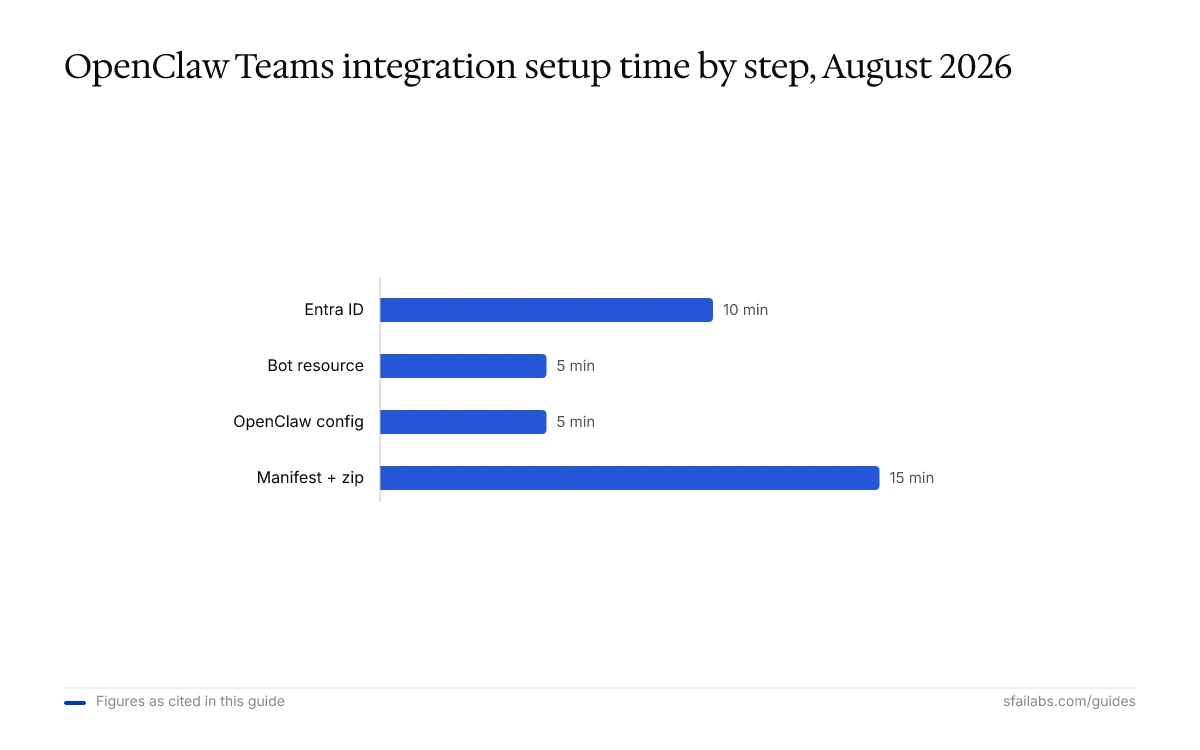
30 to 45 minutes on first setup. About 10 for Entra ID, 5 for the Bot resource, 5 for OpenClaw config, and 10 to 15 for the manifest. After the first time, updates take under 10 minutes.
Can my bot access meeting transcripts?
Yes, with additional permissions. Add OnlineMeetings.Read and OnlineMeetingTranscript.Read.All to your Entra ID app registration under API permissions. An Azure AD admin must grant consent for these permissions. Once granted, your OpenClaw skill can query the Microsoft Graph API for meeting details and transcripts.
Does my data pass through Microsoft’s servers?
Messages flow from Teams through the Bot Framework Service to your OpenClaw gateway, then from your gateway to your configured LLM provider. Microsoft sees the messages in transit (they always do with Teams), but your LLM calls go directly from your infrastructure to the model provider. OpenClaw does not route data through any additional third-party service. For organizations with strict data residency requirements, host your OpenClaw gateway in the same Azure region as your Teams tenant.
Key Takeaways
- Connect Microsoft Teams to OpenClaw by registering an app in Azure Entra ID, creating an Azure Bot resource, configuring OpenClaw, and packaging a Teams app manifest
- Teams setup takes 30 to 45 minutes versus 15 for Slack because of enterprise auth requirements, but the governance model is worth it for organizations that need policy-based access control and audit trails
- Use the full Bot Framework path for production; outgoing webhooks work for demos but Microsoft is deprecating them and they lack DM support, file access, and proactive messaging
- Start with a Q&A bot in week one, add meeting summarization in week two, and build IT support triage in week three
- For organization-wide deployment, use the Teams Admin Center instead of sideloading to get policy enforcement and app catalog visibility
SFAI Labs