LinkedIn is the one platform where automation can get your account permanently banned. That distinction matters when you are wiring up an AI agent. OpenClaw gives you two paths to connect: the official LinkedIn API for company page management, and browser mode for personal profile actions that the API does not cover. Each path has different risks, different capabilities, and different setup requirements.
This guide walks through both approaches. You will create a LinkedIn Developer App, write a custom OpenClaw skill, configure browser mode for personal profile tasks, and set up a progressive automation schedule that keeps your account safe. If you already have OpenClaw running, the API path takes about 15 minutes. Browser mode adds another 10.
Understanding LinkedIn’s Two Integration Paths
LinkedIn’s API is intentionally restrictive for personal profiles. Unlike HubSpot or Salesforce, where a single API token gives you broad read/write access, LinkedIn gates most personal profile actions behind their official apps (Sales Navigator, Recruiter, Campaign Manager). The API you get as a developer is primarily designed for company page management and share-based posting.
This creates a fork in the road:
Path 1: LinkedIn API (Company Pages + Posting)
- Create and schedule posts on company pages you admin
- Retrieve basic profile information and company analytics
- Share content programmatically via the Share API
- Safe, sanctioned, and stable. LinkedIn will not restrict your account for using their own API within rate limits.
Path 2: Browser Mode (Personal Profile Actions)
- Send connection requests and messages
- Monitor your feed and engagement notifications
- View profiles, accept invitations, endorse skills
- Operates through an isolated Chromium instance that OpenClaw controls. LinkedIn’s Terms of Service prohibit this. Account restrictions are a real risk.
We recommend starting with Path 1. If your use case demands personal profile automation, Path 2 works, but read the security section before committing.
Before You Start
You need three things ready:
-
OpenClaw installed and running. If you have not set this up yet, follow our OpenClaw setup guide. That guide covers installation, workspace configuration, memory, and Telegram/WhatsApp channel setup.
-
A LinkedIn account with admin access to at least one Company Page (for the API path). If you only need browser mode for personal profile actions, a standard LinkedIn account works.
-
A text editor for writing skill files. VS Code, Cursor, or anything that handles Markdown.
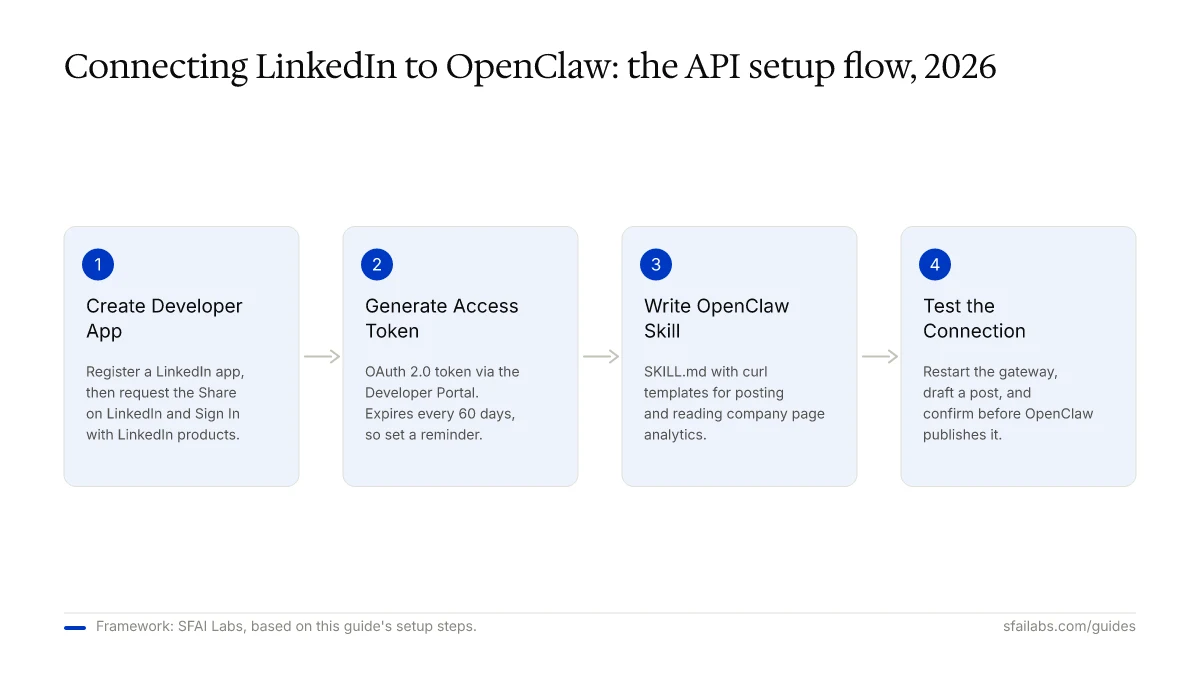
Step 1: Create a LinkedIn Developer App
LinkedIn’s Developer Portal lets you register applications that access their API. The app gives you a Client ID and Client Secret, which you exchange for an access token.
- Go to linkedin.com/developers and sign in
- Click Create App
- Fill in the required fields:
- App name:
OpenClaw Integration - LinkedIn Page: Select the company page you admin (required even for personal use)
- App logo: Upload any square image
- App name:
- Under the Auth tab, note your Client ID and Client Secret
- Under Products, request access to:
- Share on LinkedIn (for posting)
- Sign In with LinkedIn using OpenID Connect (for authentication)
- Set your Redirect URL to
http://localhost:3000/callback(used during the OAuth flow)
Generate an Access Token
LinkedIn uses OAuth 2.0. The quickest way to get a token for testing is their Developer Portal’s token generator:
- Go to the Auth tab in your app settings
- Under OAuth 2.0 tools, click Generate token
- Select the scopes:
w_member_social(posting),r_liteprofile(profile read),r_organization_social(company page read) - Complete the authorization flow
- Copy the access token
One detail that trips people up: LinkedIn access tokens expire every 60 days. Unlike HubSpot’s Private App tokens that last indefinitely, you will need to refresh this token periodically. Add a calendar reminder or build a refresh script.
Store Credentials Safely
Save the token and credentials in your .env file:
# ~/.env or ~/openclaw/.env
LINKEDIN_CLIENT_ID=your_client_id_here
LINKEDIN_CLIENT_SECRET=your_client_secret_here
LINKEDIN_ACCESS_TOKEN=your_access_token_here
LINKEDIN_PERSON_URN=urn:li:person:your_member_id
Your Person URN is your unique LinkedIn member identifier. You can find it by calling the profile endpoint after authentication, or by checking your LinkedIn profile URL slug and converting it through the API.
Step 2: Write the OpenClaw LinkedIn Skill
The skill file tells your agent how to interact with LinkedIn’s API. This follows the same pattern as our HubSpot integration: a SKILL.md file with API call templates that the agent adapts at runtime.
Create the Skill Directory
mkdir -p ~/.openclaw/workspace/skills/linkedinWrite the SKILL.md File
Create ~/.openclaw/workspace/skills/linkedin/SKILL.md:
---
name: linkedin
description: Post content to LinkedIn, read company page analytics, and manage professional networking via the LinkedIn REST API.
tools:
  - shell
  - browser
---

# LinkedIn Skill

## Authentication

Use the environment variable `LINKEDIN_ACCESS_TOKEN` for all API requests.
Base URL: `https://api.linkedin.com/v2`
All requests require these headers:

Authorization: Bearer $LINKEDIN_ACCESS_TOKEN
Content-Type: application/json
X-Restli-Protocol-Version: 2.0.0
LinkedIn-Version: 202401

## Available Operations

### Create a Post (Share API)

Post text content to LinkedIn:

curl -s -X POST "https://api.linkedin.com/v2/ugcPosts" \
  -H "Authorization: Bearer $LINKEDIN_ACCESS_TOKEN" \
  -H "Content-Type: application/json" \
  -H "X-Restli-Protocol-Version: 2.0.0" \
  -d '{
    "author": "AUTHOR_URN",
    "lifecycleState": "PUBLISHED",
    "specificContent": {
      "com.linkedin.ugc.ShareContent": {
        "shareCommentary": { "text": "POST_TEXT_HERE" },
        "shareMediaCategory": "NONE"
      }
    },
    "visibility": { "com.linkedin.ugc.MemberNetworkVisibility": "PUBLIC" }
  }' | jq '.'

Replace AUTHOR_URN with $LINKEDIN_PERSON_URN for personal posts
or the organization URN for company page posts.

### Get Profile Info

curl -s "https://api.linkedin.com/v2/me" \
  -H "Authorization: Bearer $LINKEDIN_ACCESS_TOKEN" \
  | jq '{id: .id, firstName: .localizedFirstName, lastName: .localizedLastName}'

### Get Company Page Stats

curl -s "https://api.linkedin.com/v2/organizationalEntityShareStatistics?q=organizationalEntity&organizationalEntity=ORGANIZATION_URN" \
  -H "Authorization: Bearer $LINKEDIN_ACCESS_TOKEN" \
  | jq '.elements[0]'

## Browser Mode Operations (Personal Profile)

For actions the API does not support, use the browser tool
with the openclaw profile:

### View a Profile
1. Run: browser open "https://linkedin.com/in/USERNAME"
2. Run: browser snapshot
3. Parse the profile details from the snapshot

### Check Notifications
1. Run: browser open "https://linkedin.com/notifications"
2. Run: browser snapshot
3. Summarize unread notifications

### Accept Connection Requests
1. Run: browser open "https://linkedin.com/mynetwork/invitation-manager"
2. Run: browser snapshot
3. For each pending invitation, confirm with user before clicking Accept

## Rules

- Always confirm before posting content. Show the full post text and ask for approval.
- For browser mode operations, require explicit user approval before any action that modifies state (sending messages, accepting connections, endorsing skills).
- Respect rate limits: LinkedIn API allows roughly 100 requests per day for most endpoints. For browser mode, keep actions under 30 per hour.
- Never log the access token in responses or memory files.
- If the access token returns a 401 error, inform the user that the token has likely expired (they expire every 60 days) and needs to be refreshed.
- When using browser mode, add random delays of 3-8 seconds between actions to reduce detection risk.
What Each Section Does
The frontmatter lists both shell and browser as tools. This lets the agent choose the right approach: API calls via curl for supported operations, browser automation for personal profile tasks.
The API operations cover posting and analytics. These are the safe, sanctioned actions. The agent adapts the curl templates by substituting your URN, post text, and target organization.
The browser mode operations provide patterns for personal profile interactions. The agent opens LinkedIn in an isolated Chromium instance, reads the page via snapshots, and interacts through click and type commands.
The rules section enforces two critical guardrails: confirmation before writes, and rate limiting. The 30-actions-per-hour limit for browser mode is conservative, but accounts can get restricted at higher frequencies.
Step 3: Configure Browser Mode for LinkedIn
If you plan to use browser mode for personal profile actions, you need to authenticate the isolated browser with your LinkedIn session.
Option A: Cookie-Based Authentication
- Log into LinkedIn in your regular browser
- Export your LinkedIn cookies using a browser extension (EditThisCookie, Cookie-Editor)
- Import them into OpenClaw’s browser profile:
openclaw browser --browser-profile openclaw open "https://linkedin.com"- Set the cookies using OpenClaw’s browser cookie commands
- Verify by navigating to your LinkedIn feed: the browser should show your logged-in session
Option B: Manual Login in the Isolated Browser
- Open the OpenClaw browser:
openclaw browser --browser-profile openclaw start
openclaw browser --browser-profile openclaw open "https://linkedin.com/login"- Use OpenClaw’s browser type and click commands to enter your credentials
- Complete any two-factor authentication prompts
- The session persists in the isolated profile between restarts
We recommend Option B for initial setup. It is simpler and avoids the cookie export/import step. The isolated browser retains your session across restarts, so you only need to log in once.
Warm-Up Your Browser Profile
Do not start automating the moment you log in. LinkedIn tracks behavioral patterns and flags accounts that shift from zero automation to high-volume activity overnight.
Week 1: Use OpenClaw only for reading. Ask it to check your notifications, summarize your feed, or look up a specific profile. No outbound actions.
Week 2: Add light engagement. Have the agent accept a few connection requests per day (5-10 maximum) and like a handful of posts.
Week 3+: Gradually introduce posting and outreach at conservative volumes.
Step 4: Test the Connection
Restart OpenClaw to load the new skill:
openclaw gateway restartOpen your Telegram or WhatsApp chat with your OpenClaw agent and try these:
API test (posting):
“Draft a LinkedIn post about our latest product update. Show me the text before posting.”
The agent should compose the post, show it to you, and wait for confirmation before hitting the API.
API test (analytics):
“How many impressions did our company page get this week?”
Browser mode test (read-only):
“Check my LinkedIn notifications”
The agent should open the browser, navigate to your notifications page, take a snapshot, and summarize what it finds.
If any test fails, check these common issues:
| Symptom | Likely Cause | Fix |
|---|---|---|
| 401 Unauthorized | Token expired or invalid | Regenerate at LinkedIn Developer Portal |
| 403 Forbidden | Missing API scope | Add the required product to your LinkedIn app |
| Browser shows login page | Session expired | Re-authenticate in the OpenClaw browser profile |
| Empty API response | Wrong URN format | Verify your Person URN or Organization URN |
| Browser actions blocked | LinkedIn detected automation | Pause for 24-48 hours, reduce action frequency |
What to Automate First
Follow the same progression that works well for CRM integrations: read first, write second, schedule third.
Week 1: Read-Only Intelligence
Use your agent for quick lookups and monitoring:
- “Summarize my LinkedIn notifications from today”
- “Check who viewed my profile this week”
- “What are the top posts in my feed about AI agents?”
This builds your comfort level and lets you verify the agent’s accuracy against what you see in the LinkedIn app.
Week 2: Content Posting via API
Start scheduling posts through the API path (safe, no account risk):
- “Post this to our company LinkedIn page: [your content]”
- “Draft three LinkedIn post ideas about [topic] and let me pick one”
- “Post a summary of our latest blog article to LinkedIn”
Add this to your heartbeat.md for automated posting:
## Weekly LinkedIn Post
Every Monday at 9 AM, draft a LinkedIn post summarizing
our latest published blog article. Show me the draft
in Telegram and wait for approval before posting.
Week 3: Engagement Monitoring
Set up periodic checks that run without being asked:
## Daily LinkedIn Check (runs at 8:00 AM)
Check my LinkedIn notifications via browser mode.
Summarize any new connection requests, message requests,
and post engagement. Send the summary to Telegram.
Security and LinkedIn’s Policies
LinkedIn’s Terms of Service prohibit automated tools that scrape data or perform actions on behalf of users without explicit platform authorization. This applies to browser-based automation. The API path is sanctioned.
What this means in practice:
- API-based posting and analytics: Fully allowed. You created a Developer App, LinkedIn approved your scopes, and you are using their endpoints as intended. No risk.
- Browser-based profile actions: Against Terms of Service. LinkedIn uses behavioral analysis, IP tracking, and device fingerprinting to detect automation. Consequences range from temporary restrictions (CAPTCHA challenges, limited actions for 24-72 hours) to permanent account suspension.
Our recommendation: Use the API for everything it supports. Only use browser mode for low-volume, read-heavy tasks on personal profiles where the API has no equivalent. Keep browser actions under 30 per hour with random delays. Never automate mass connection requests or message blasts.
If your LinkedIn account is critical to your business (networking, recruiting, sales pipeline), weigh the risk carefully. A restricted account means losing access to your entire network until LinkedIn reviews and reinstates it.
Frequently Asked Questions
Does OpenClaw work with LinkedIn’s official API?
OpenClaw connects to LinkedIn’s official API through a Developer App and OAuth 2.0 access token. You write a skill file with curl-based API call templates. The API supports posting content (personal and company pages), reading profile information, and pulling company page analytics. It does not support sending connection requests, direct messages, or viewing other users’ full profiles.
Will LinkedIn ban my account for using OpenClaw?
For API-based actions (posting, analytics), no. You are using LinkedIn’s sanctioned endpoints. For browser-based automation (connection requests, messaging, profile visits), there is real risk. LinkedIn detects automation through behavioral analysis and can restrict or suspend accounts. Keep browser actions low-volume and human-paced.
How do I refresh my LinkedIn access token when it expires?
LinkedIn access tokens expire every 60 days. You have two options: manually regenerate the token through the Developer Portal’s OAuth tools, or build a refresh token flow using your Client ID and Client Secret. For most OpenClaw users, the manual approach is simpler. Set a recurring calendar reminder at the 50-day mark.
Can I automate LinkedIn posts with OpenClaw?
The API supports full post automation. Write your content (or have OpenClaw draft it), then the agent calls the Share API to publish. You can post to your personal profile or any company page you admin. For scheduled posting, add a heartbeat instruction that drafts content at a set time and waits for your approval before publishing.
What is the difference between API access and browser mode for LinkedIn?
The API is LinkedIn’s official programmatic interface. It handles posting, analytics, and profile reads within sanctioned rate limits. Browser mode drives an isolated Chromium instance that interacts with LinkedIn’s web interface as if a human were clicking. Browser mode can do anything you can do in a browser (send messages, accept requests, browse feeds), but LinkedIn’s Terms of Service prohibit it.
How many connection requests can I safely send per day with OpenClaw?
LinkedIn’s weekly limit is roughly 100-200 connection requests, depending on your account age and activity history. Through browser mode, we recommend no more than 10-15 per day, spread across several hours with random delays. Exceeding this frequently triggers restrictions. If networking volume is your primary goal, LinkedIn Sales Navigator is the safer and more effective path.
Do I need LinkedIn Sales Navigator for this integration?
The API integration works with a free LinkedIn account and a Developer App. Browser mode also works with a standard account. Sales Navigator adds advanced search, InMail credits, and lead management, but none of those features are required for the OpenClaw connection.
Can OpenClaw monitor LinkedIn engagement metrics?
For company pages, yes, through the API. The Organizational Entity Share Statistics endpoint returns impressions, clicks, likes, comments, and shares. For personal profile engagement (who liked your post, who viewed your profile), browser mode can read this from the LinkedIn UI, but the API does not expose it for personal accounts.
Key Takeaways
- LinkedIn offers two integration paths: the official API (safe, limited to posting and analytics) and browser mode (full access, against Terms of Service)
- Create a LinkedIn Developer App and store your OAuth token in
.env, not in skill files your agent reads into context - Write a custom SKILL.md that covers both API calls and browser mode operations with clear rules for each
- Start with API-based posting and read-only browser tasks before adding any outbound automation
- Keep browser mode actions under 30 per hour with random delays of 3-8 seconds to reduce detection risk
- LinkedIn access tokens expire every 60 days, so set a reminder to refresh them before they lapse
SFAI Labs